Prolis - Professional Lab Information System
A client server, single module windows application for multispeciality Laboratories.
Start Prolis
Double click the Prolis icon either on your desktop or in the Start menu

.
Login
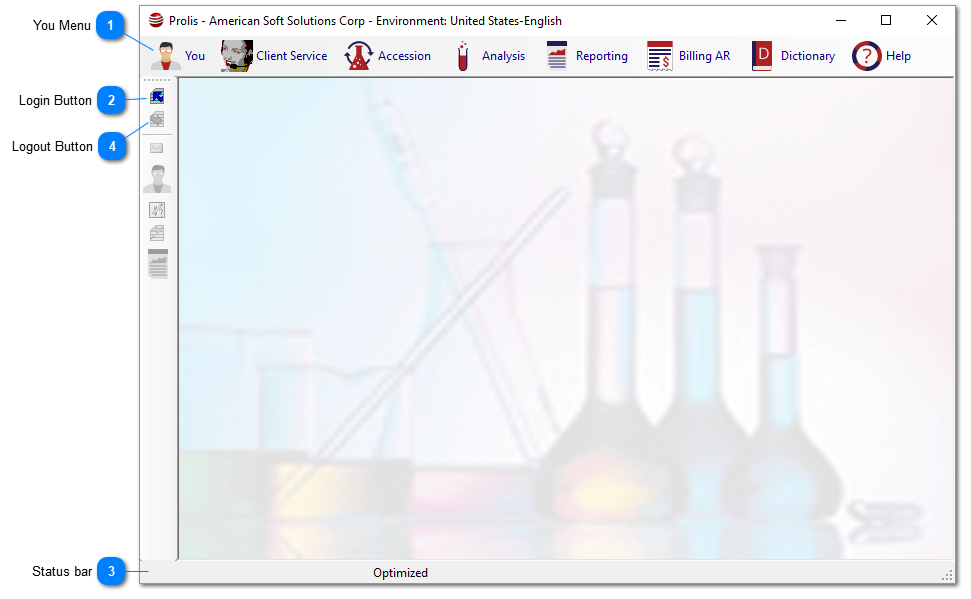
Login to the system by clicking the Login button

or the Login menu item of the You Menu

.
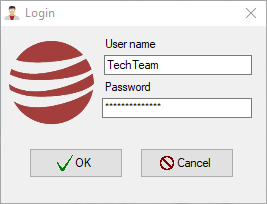
Following screen will appear.
Enter the user name, the password and click the 'Ok' button.
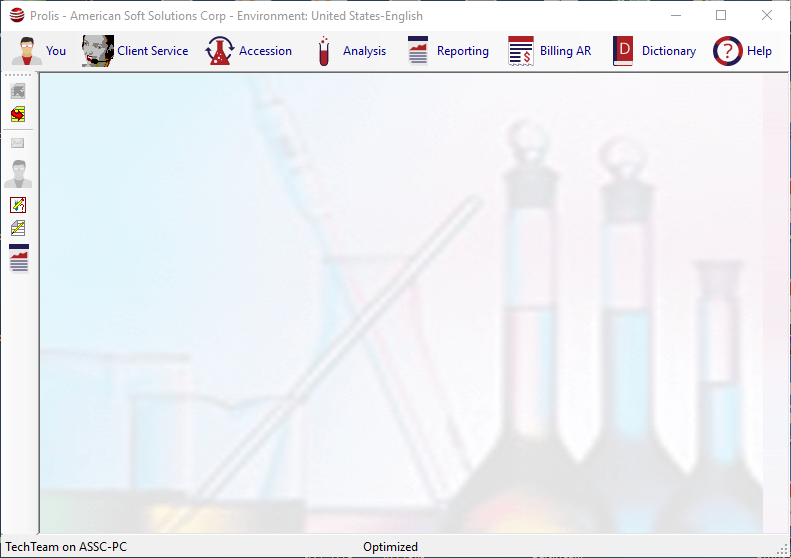
The main screen will change as follows;
The logout button wll be enabled and the Login button will be greyed out.
The user name and the PC name will appear on the status bar alog with activating the entire menu based on the user's permission assigned by the system administrator.
Data Setting
Application's connection to the database called data setting can be accessed by pressing the function key, F6.
The data setting is accessed upon getting any login error in which case the setting might have been disturbed
or for the first time setup of any workstation.
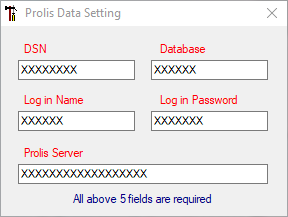
a. Press F6 key. Following screen will appear, after Prolis logs out the user, if logged in.
b. Enter the DSN (Data Source Name), setup in the ODBC adminstrator. For example, ProlisQC.
c. Enter the database name, setup in the ODBC adminstrator. For example, Labase.
d. Enter the Log in Name, setup in the ODBC adminstrator. This information will be provided to you by American Soft Solutions Tech.
e. Enter the Log in Password, setup in the ODBC adminstrator. This information will be provided to you by American Soft Solutions Tech.
f. Enter the Prolis Server, setup in the ODBC adminstrator. For example MyServer, MyServer\SQLEXPRESS or 127.0.0.1\SQLEXPRESS.
g. X out the setting. The setting gets saved automatically and Prolis re-establishes the connection based on the setting entered.
For an incorrect information, Prolis won't be able to establish the connection and display the error. Repeat the cycle of above steps with correct information.
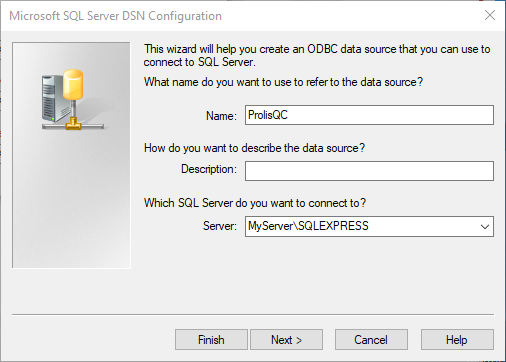
A typical Prolis ODBC Setting
A system ODBC administrator (32 bit) is used.
Logout
Click the Logout button

on the left verical bar or the Logout menu item

of the You Menu.
 You Menu
|
|
 Login Button
|
|
 Status bar
|
|
 Logout Button or Click this button (if active) to logout of Prolis.
|
|