Synchronization is a routine in Prolis, to transfer the billable services data from clinical side to the billing routine.
Synchronization is executed upon completion of the resulting and reporting, any changes in the ordered tests
for an accession and any change in the definitions of the tests included in the accessions to be billed.
Instant Procedure
a. Make selection by either entering the accession range, entering discrete accessions or using the date range.
b. Optionall apply filter by entering the provider and/or checking Final only and/or checking and/or uchecking the Dot suppress, QNS, LAE and TNP.
c. Click the process button.
 Process buttonClick this button after making the report selection, to process.
|
 Cancel ButtonClick this button to stop thesynchronization operation.
|
|
Click this button to access the help to use the routine.
|
 Major selection filter switchThis switch with 2 options, the default 'Specific Unbilled' enables you to specify the mutually exclusive minor options like date range, the accession range or the list of discrete accessions, and the
'All Unbilled'. The 'All Unbilled' option does not let you specify any of the minor options.
|
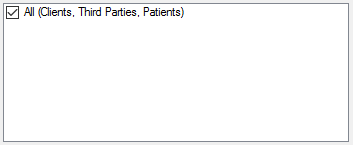
 Billing Type SelectionThis drop down is used to select the desired billing type to get synchronized. The selection of 'All (Clients, Third Parties, Patients) is not recommended. Synchronization is preferred to be done indicidually.
|
 Check All ButtonUse this button to check all Bilee's.
|
 Uncheck All ButtonUse this button to uncheck all Bilee's.
|
 From DateThe lowest member of the Service date range.
|
 To DateThe highest member of the service date range.
|
 From AccessionEnter the lowest Accession ID of the Accession range.
|
 To AccessionEnter the highest Accession ID of the Accession range.
|
 Discrete Accession listEnter each accession per line or copy the entire list of accessions (from any App like Notepad, Excel or similar), right click the row of this field and paste.
|
 Bille's ListThis field displays the target Bilee's, based on the Billing Type selected. For the Client Billing, it displays the Clinics and Physicians, for the Third Party Billing, it displays the Insurance Companies and for the Patient Billing, it displays the patients to be billed.
|
 Results Switch The Results Switch with 2 options, the default 'With Results Only' forces Prolis to consider the presence of analysis result, while synchronization and the other 'Ignore Results' does not consider results at all. Thus it will synchronize disregarding the results. The default option 'With Results Only' is recommended.
|
 Status SwitchThis switch provides 2 options, 'Final Accessions Only' and 'Final and Partial Both'. The recommended option is the 'Final Accession Only'.
|
 Dot (.) SupressA dot (.) is a specific character within Prolis that is used to suppress the test result from appearing in the patient result report. Thus a suppressed test is not supposed to be billed. The default option (checked) represents the logical behavior and is recommended.
|
 Lab Accident (LAE)A Lab Accident(LAE) is a check field that can be used to indicate an accident with the term LAE in the result. Thus an LAE'd test is not supposed to be billed. The default option (checked) represents the logical behavior and is recommended.
|
 QNS CheckThe QNS (Quantity Not Sufficient) check field that can be used not to include the test for the billing. The default option (checked) represents the logical behavior and is recommended.
|
 TNP CheckThe TNP (Test not Performed) check field is used not to include the test for billing, if checked otherwise it is included in the billing.
|