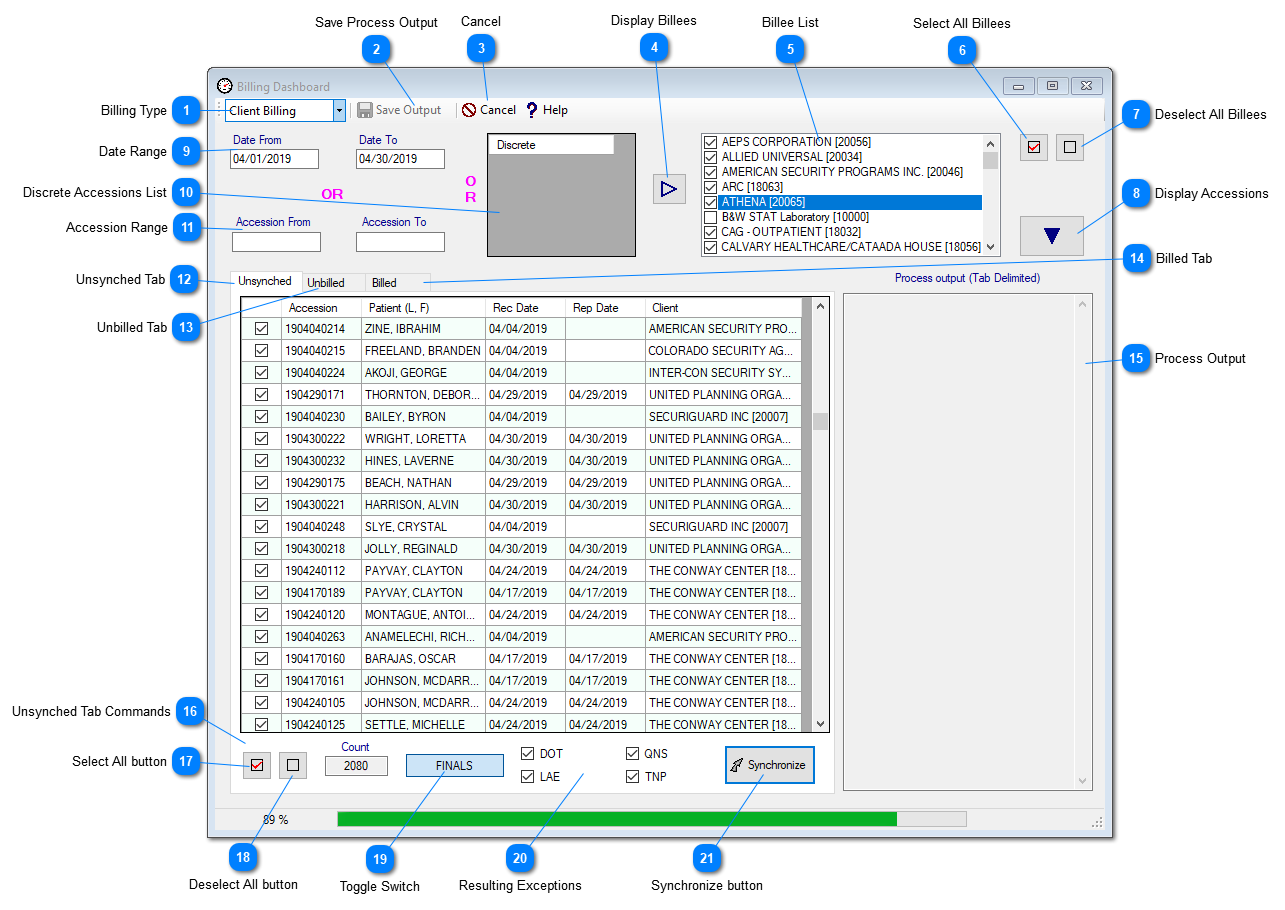
Prolis now comes with a single tool to synchronize, reverse synchronize, bill, reverse bill, output (printing, screen viewing, to electronic file 837 and email) the invoices and complete tracking of the data, all on one screen. Unlike the Billing Editor, the Billing Dashboard is batch processing speedy tool.
Instant Procedure
Synchronize
1) Select the desired Billing Type (Client Billing, Insurance Billing or the Patient Billing) using the drop down at top left corner of the screen.
2) Select the Unsynched Tab (the left most) using the Tabs located in the middle of the screen.
3) Enter either the Date Range or the Accession Range or the discrete accessions in the Discrete field and click the right ward hollow button.
4) Finalize your selection (leave all Billees checked or deselect some) using the displayed billees in the Billees list field.
5) Click the down ward solid arrow button.
6) Perform the accession wide selection (leave all checked or uncheck some).
7) You may click the Switch located at the bottom of the Unsynched Tab, for 'Ignore Results' option or leave at 'FINALS' (default).
8) Click the 'Synchronize' button. Wait until your action's result appears in the Process Output field.
Bill or Unsynch
1) Select the desired Billing Type (Client Billing, Insurance Billing or the Patient Billing) using the drop down at top left corner of the screen.
2) Select the Unbilled Tab (2nd from the left) using the Tabs located in the middle of the screen.
3) Enter either the Date Range or the Accession Range or the discrete accessions in the Discrete field and click the right ward hollow button.
4) Finalize your selection (leave all Billees checked or deselect some) using the displayed billees in the Billees list field.
5) Click the down ward solid arrow button.
6) Perform the accession wide selection (leave all checked or uncheck some).
7) To reverse the synchronization, click the 'Usynch' button located at the middle bottom of the Unbilled Tab and wait for the process output otherwise check or uncheck the Validate field, enter the desired bill date, click the 'Bill' button and wait for the process output.
Reverse Billing or Bills Outputting
1) Select the desired Billing Type (Client Billing, Insurance Billing or the Patient Billing) using the drop down at top left corner of the screen.
2) Select the Unbilled Tab (3rd from the left) using the Tabs located in the middle of the screen.
3) Enter either the Date Range or the Accession Range or the discrete accessions in the Discrete field and click the right ward hollow button.
4) Finalize your selection (leave all Billees checked or deselect some) using the displayed billees in the Billees list field.
5) Click the down ward solid arrow button.
6) Perform the accession wide selection (leave all checked or uncheck some).
7) To reverse the billing, click the 'Reverse' button located at the middle bottom of the Billed Tab and wait for the process output otherwise click for 'All' or leave at 'Non Zero' the the Toggle Switch, select the desired destination (Printer, Screen, Email or the 837 File), click the 'Process' button and wait for the output in the process output field.
 Billing TypeSelect one of the three Prolis supported billing types, using this field.
|
 Save Process OutputClick this button to save the process output that appears after any process completes its execution.
|
 CancelClick this button to interrupt a running process, in the dashboard.
|
 Display BilleesClick this button to display the target parties, to be billed (Billees).
|
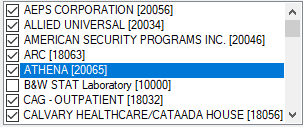
 Billee ListA list of parties to be billed (Clinicians for Client Billing, Insurances for Third Party Billing and Patients for the Patient Billing).
|
 Select All BilleesClick this button to check all entries of the neighboring list.
|
 Deselect All BilleesClick this button to uncheck all entries of the neighboring list.
|
 Display AccessionsClick this button to display accessions, as a result of the select made.
|
 Date RangeThese two fields represent the Specimen Received Date Range that can be used as a criteria, for any subsequent operation.
|
 Discrete Accessions ListThis field can be used to key in multiple accessions (one per line), in in a range usually or paste a list of accessions copied from an external source (i.e. notepad) that can be used as a criteria, for any subsequent operation.
|
 Accession RangeA range of accessions that can be used as a criteria, for any subsequent operation.
|
 Unsynched Tab'Unsynched Tab' is one of several Tabs on the billing dashboard that is selected prior to clicking the Display Billees (4) button, for the synchronization.
This Tab displays only the accessions, not synched.
|
 Unbilled Tab'Unbilled Tab' is one of several Tabs on the billing dashboard that is selected prior to clicking the Display Billees (4) button, to reverse the synchronization or billing. This Tab displays only the synchronized accessions.
|
 Billed Tab'Billed Tab' is one of several Tabs on the billing dashboard that is selected prior to clicking the Display Billees (4) button, to print, screen view, email or create the 837 file of the selected billed accessions. This Tab displays only the billed accessions.
|
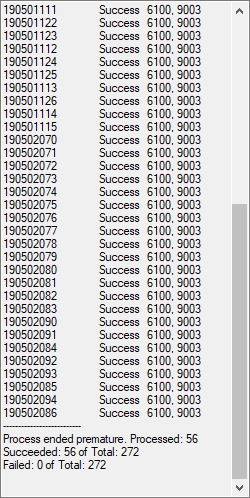
 Process OutputThis field displays the results of the process upon the completion of its execution.
|
 Unsynched Tab CommandsThe 3rd from the left, field represents the count of all the accessions displayed in the Unsynched accessions list.
|
 Select All buttonThe left most button is used to check all the accessions displayed in the Unsynched accessions list.
|
 Deselect All buttonThe 2nd from the left button is used to uncheck all the accessions displayed in the Unsynched accessions list.
|
 Toggle SwitchToggle switch between 'FINALS' and the 'Ignore Results' options, to be opted before invoking the synchronization process. FINALS option restricts Prolis to only synch the accessions that are final. Under the 'Ignore Results' option, Prolis will synchronize all the accessions.
|
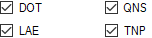
 Resulting ExceptionsFour check boxes (DOT, QNS, LAE and TNP), right to the 4th Toggle Switch, are the Result exceptions associated with 'FINALS' option of the Toggle Switch. If checked, the billable component won't be synched as all of these exceptions are not true results, rather represent the special meanings in Prolis. A dot (.) in pace of the result, suppresses the component from the result report. A 'QNS' in the place of the result indicates that the specimen quantity insufficient to perform the test procedure. An 'LAE' indicate the lab accident during the specimen workflow. A 'TNP' means the test was not performed for any reason.
|
 Synchronize buttonThe right most 'Synchronize' button, when it is clicked, invokes the synchronization process.
|